Specifications
- Accessories
- Audio & Visual
- Components
- Computers
- Consumables
- Gaming
- Networking
- Other
- Power & Energy
- Printing
- Refurbished
- Replacement Parts
- Services
- Smart Devices
- Software

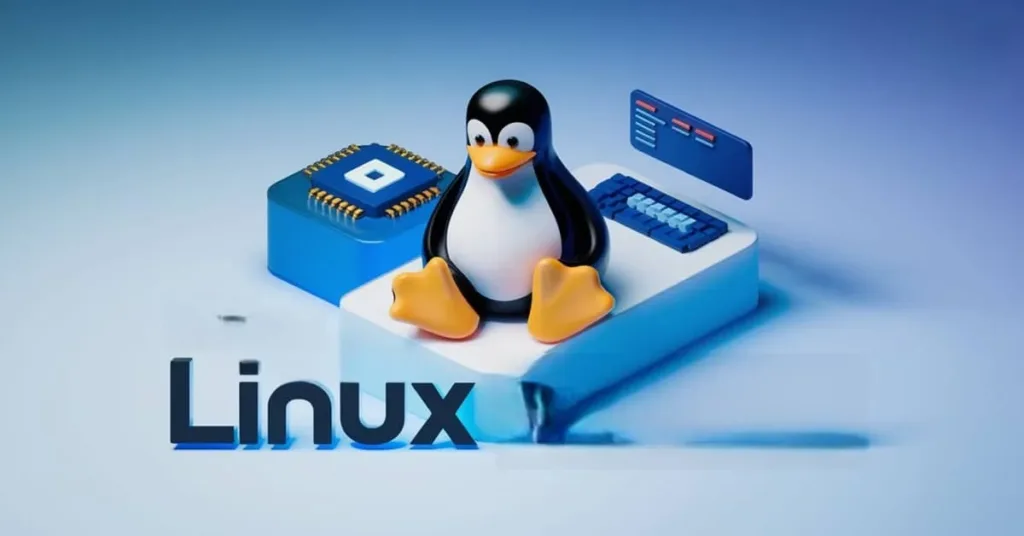
Understanding the World of Linux Operating Systems
So, you’re intrigued by Linux, but the sheer number of options has you feeling lost? You’re not alone! The Linux ecosystem is incredibly diverse, which can be both a blessing and a curse for newcomers. Let’s break down some key terms and help you navigate this exciting world.
Distributions, Forks, and Flavours: Demystifying the Jargon
Imagine Linux as a car engine. It’s the core technology. Now, imagine different car manufacturers taking that same engine and building entirely different vehicles around it – a sporty convertible, a sturdy SUV, a compact city car. These different vehicles are analogous to Linux distributions (often shortened to “distros”).
A Linux distribution is a complete operating system built on top of the Linux kernel. It includes the kernel itself, a desktop environment (what you see and interact with), system utilities, pre-installed applications, and a package management system for installing more software. Each distro offers a unique blend of these components, catering to different user needs and preferences.
When a development team takes an existing Linux distribution’s source code and modifies it to create a new, distinct distribution, that new distribution is called a fork. For example, Linux Mint is a popular fork of Ubuntu, designed to be even more user-friendly, particularly for those transitioning from Windows.
A flavour (or “spin”) typically refers to a variation of an existing distribution that comes with a different desktop environment or a specific set of pre-installed software, but still retains the core of the original distribution. For example, Ubuntu offers several official “flavours” like Kubuntu (with the KDE Plasma desktop) or Xubuntu (with the Xfce desktop). It’s still Ubuntu, just with a different “look and feel” and perhaps a few different default applications.
Where to Start? Beginner-Friendly Options
Feeling overwhelmed? Don’t be! Many Linux distributions are specifically designed with beginners in mind, offering intuitive interfaces and extensive community support. Here are a few excellent starting points:
- Linux Mint: Often cited as the best choice for Windows switchers, Linux Mint focuses on user-friendliness, a familiar interface (especially with its Cinnamon and MATE editions), and out-of-the-box multimedia support. It’s highly stable and has a large, welcoming community.
- Ubuntu: One of the most popular Linux distributions, Ubuntu is known for its ease of use, robust hardware support, and a massive community. It has a modern, clean interface (GNOME desktop by default) and is a great all-rounder.
- Zorin OS: If you’re looking for an almost identical Windows-like experience, Zorin OS is an excellent choice. It’s specifically designed to make the transition from Windows as seamless as possible, with familiar layouts and pre-installed applications.
- MX Linux: Based on Debian, MX Linux is a mid-weight distribution known for its stability, efficiency, and a good balance between performance and user-friendliness. It’s also great for older hardware.
Most of these distributions offer a “Live” mode, allowing you to try them out from a USB drive without installing anything on your computer. This is a fantastic way to experiment and find what feels right for you.
Getting Software: It’s Easier Than You Think!
One common concern for new Linux users is software availability. While you won’t find every niche Windows application, the Linux ecosystem boasts a vast array of high-quality, often free and open-source, alternatives.
The primary way to get software on Linux is through its package manager. Think of it as an app store built right into your operating system. Each distribution has its own package manager (e.g., apt for Debian/Ubuntu/Mint, dnf for Fedora, pacman for Arch), but they all work similarly:
- Software Center/Store: Most beginner-friendly distributions include a graphical “Software Center” or “App Store” where you can browse, search for, and install applications with a few clicks, just like on your phone or Windows.
- Command Line: For more advanced users, software can be installed using simple commands in the terminal (e.g., sudo apt install firefox). This method is fast, efficient, and often used for system administration.
- Flatpaks, Snaps, and AppImages: These are newer, universal packaging formats that aim to make software installation even easier and more consistent across different Linux distributions. They bundle all necessary dependencies within the application package, reducing compatibility issues. Many popular applications are available in these formats.
- Web-based Applications: As mentioned, many services are now cloud-based, accessible through your web browser, regardless of your operating system.
You’ll find excellent open-source alternatives for almost every popular Windows application:
- Office Suite: LibreOffice (a comprehensive suite comparable to Microsoft Office)
- Web Browser: Firefox, Chromium (the open-source base for Google Chrome)
- Image Editing: GIMP (a powerful alternative to Photoshop)
- Video Editing: Kdenlive, Shotcut
- Media Player: VLC Media Player
Pros and Cons of Linux
Like any operating system, Linux has its strengths and weaknesses:
Pros:
- Free and Open Source: The vast majority of Linux is free to download, use, and distribute. This means no license fees or hidden costs.
- Stability and Reliability: Linux systems are renowned for their stability and uptime, making them ideal for servers and long-term use. Less prone to crashes and malware.
- Security: Due to its open-source nature, large developer community, and robust permission system, Linux is generally considered more secure than Windows and less susceptible to viruses and malware.
- Customization: Linux offers unparalleled flexibility and customization options. You can tailor almost every aspect of your system to your liking.
- Performance on Older Hardware: Linux is significantly less resource-intensive than Windows, breathing new life into older or less powerful computers.
- Community Support: A massive and active global community provides abundant resources, forums, and documentation to help users.
- Privacy: Many Linux distributions prioritize user privacy, with less telemetry and data collection compared to proprietary operating systems.
Cons:
- Learning Curve: While greatly improved, some tasks, especially advanced configuration or troubleshooting, might require using the command line, which can be daunting for absolute beginners.
- Hardware Compatibility (Occasionally): While much improved, some very new or niche hardware might have limited or no official Linux drivers. It’s always a good idea to check compatibility for specific components.
- Software Availability (Gaming & Niche Commercial Software): While most mainstream software has Linux alternatives or web versions, some highly specific or proprietary commercial software (especially games with anti-cheat, or professional creative suites) might not be directly available or may require compatibility layers (like Wine) which can be less than perfect.
- Lack of Standardization (Minor): The sheer number of distributions and desktop environments can sometimes lead to slight inconsistencies in how things are done across different systems.
- Commercial Support: While community support is excellent, direct commercial technical support for specific issues might be less readily available or require a paid service compared to large corporations like Microsoft.
Categories Optional in Dropdown
Table of Contents
SHARE YOUR THOUGHTS
ACADAMY
Upskill in your own time
Classes Courses Online Onsite Groups Individuals
- SKILLS
- AI
- MARKETING
CompuMaster online and in person classes provide business owners with the practical computer skills needed to navigate the digital world and enhance their business operations. It will cover a range of topics, from basic computer fundamentals to more advanced applications relevant to business management.
Gain the ability to adapt to new technologies and trends in the digital marketplace, which is crucial for staying competitive.
By the end of this course, you will have the foundational computer skills and practical knowledge to confidently navigate the digital world and leverage technology to enhance your small business.