

Specifications
Parts
Categories
- Accessories
- Audio & Visual
- Bags & Luggage
- Clearance
- Coming Soon
- Components
- Computers
- Consumables
- Gaming
- Hot Deals
- Just Arrived
- Last Chance
- Lifestyle & home tech
- Networking
- Networking & security
- Newly Arrived
- On Promotion
- On Sale
- Other
- Power & Energy
- Printing
- Refurbished
- Replacement Parts
- Services
- Smart Devices
- Software
- Special Offer
Parts
Categories
- Accessories
- Audio & Visual
- Bags & Luggage
- Clearance
- Coming Soon
- Components
- Computers
- Consumables
- Gaming
- Hot Deals
- Just Arrived
- Last Chance
- Lifestyle & home tech
- Networking
- Networking & security
- Newly Arrived
- On Promotion
- On Sale
- Other
- Power & Energy
- Printing
- Refurbished
- Replacement Parts
- Services
- Smart Devices
- Software
- Special Offer
Components
Popular
Parts
Categories
- Accessories
- Audio & Visual
- Bags & Luggage
- Clearance
- Coming Soon
- Components
- Computers
- Consumables
- Gaming
- Hot Deals
- Just Arrived
- Last Chance
- Lifestyle & home tech
- Networking
- Networking & security
- Newly Arrived
- On Promotion
- On Sale
- Other
- Power & Energy
- Printing
- Refurbished
- Replacement Parts
- Services
- Smart Devices
- Software
- Special Offer
Components
Popular
Parts
Categories
- Accessories
- Audio & Visual
- Bags & Luggage
- Clearance
- Coming Soon
- Components
- Computers
- Consumables
- Gaming
- Hot Deals
- Just Arrived
- Last Chance
- Lifestyle & home tech
- Networking
- Networking & security
- Newly Arrived
- On Promotion
- On Sale
- Other
- Power & Energy
- Printing
- Refurbished
- Replacement Parts
- Services
- Smart Devices
- Software
- Special Offer
Components
Popular
Laptop Overheating, Cooling & Fans
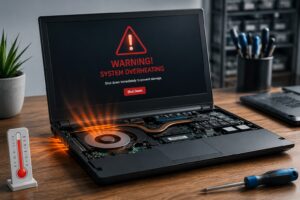
Laptops have to fit a powerful computer into a very small space. That makes effective cooling essential.
When the cooling system can’t keep up, temperatures rise. The fan may become noisy, performance can drop, the laptop may become uncomfortable to use, and in severe cases the system can shut down to protect itself.
A hot laptop isn’t always a sign that something is broken. Modern processors are designed to operate at high temperatures and can automatically reduce performance when necessary. But persistent excessive heat, unusually loud fans or sudden performance problems should not be ignored.
This guide explains why laptops overheat, how their cooling systems work, what the warning signs are and when professional attention may be needed.

115 Reviews
Repair Options
New & Refurbished

Dell OptiPlex 3080 10th gen Intel® Core™ i5 -10500 16GB RAM 256GB SSD Win 11 Pro – Refurbished
HP ProDesk 600 G5 SFF Desktop PC – Core i5-9500 – 9th Gen -16GB – Win 11 Pro – Refurbished
Nationwide Repair Services

Need Help?
If you need computer repairs in Centurion, contact CompuMaster for friendly advice, professional service, and practical IT solutions for both home users and businesses.
060 900 88 78
Why Do Laptops Overheat?
There are several possible causes.
Some are simple maintenance issues. Others involve worn or damaged hardware.
Common causes include:
- Dust and dirt restricting airflow
- Blocked ventilation openings
- A clogged heatsink
- A failing or noisy cooling fan
- Old or degraded thermal compound
- High CPU or GPU usage
- Demanding applications and games
- Running too many processes
- A damaged cooling system
- Using the laptop on a soft surface
- Hot environmental conditions
- Firmware or software problems
- A processor or graphics chip being pushed beyond what the cooling system can comfortably handle
The important point is that overheating is a symptom, not necessarily the underlying fault.
How Does a Laptop Cooling System Work?
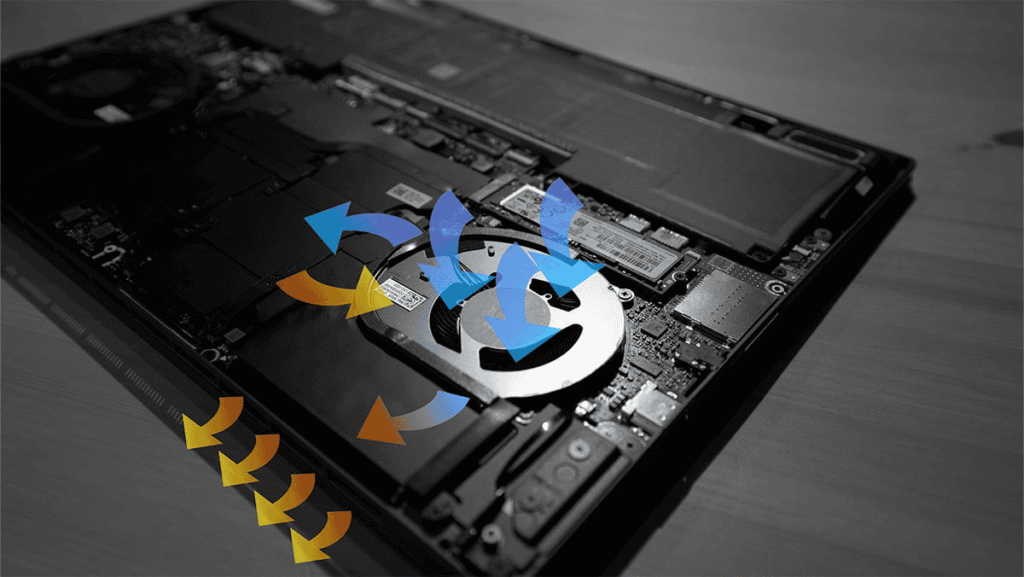
Most laptops use a combination of components to move heat away from the processor and, where applicable, the dedicated graphics processor.
The main components are:
Heat Sink
The heatsink absorbs heat from the processor and transfers it through its metal structure.
Heat Pipes
Many laptops use copper heat pipes to move heat away from the processor and other hot components towards the heatsink.
Cooling Fan
The fan forces air through the heatsink fins and out of the laptop.
Ventilation Openings
Air needs somewhere to enter and leave the laptop.
If these openings become blocked, the cooling system cannot work effectively.
Thermal Compound
Thermal compound sits between the processor and heatsink, helping heat transfer between the two surfaces.
Over time, thermal compound can deteriorate and may no longer perform as effectively as it should.
Why Is My Laptop Fan So Loud?
A laptop fan becoming louder isn’t automatically a problem.
When the processor is working hard, the cooling system responds by increasing fan speed. Gaming, video editing, large downloads, Windows updates and other demanding activities can all cause temporary increases in fan noise.
The concern is when the fan is consistently loud when the laptop isn’t doing anything particularly demanding.
Possible causes include:
- Excessive background CPU usage
- Dust restricting airflow
- A blocked heatsink
- High internal temperatures
- Thermal throttling
- A failing fan
- Software problems
- Malware or unwanted processes
A fan that makes grinding, clicking, rattling or scraping noises may also be mechanically worn or damaged.
Can Overheating Make a Laptop Slow?
Yes.
This is one of the most important connections between cooling and performance.
Modern processors have thermal protection mechanisms. When temperatures approach their limits, the processor can reduce its operating speed to control heat.
This is known as thermal throttling.
The result can be a laptop that starts normally but becomes increasingly slow when it has been working for a while.
For example:
The laptop is fast when first switched on, but becomes slow after 20 or 30 minutes.
That can be an important clue that temperature is involved.
Overheating doesn’t always cause this pattern, but it is worth investigating.
What Are the Signs of an Overheating Laptop?
Watch for combinations of symptoms rather than relying on temperature alone.
Common warning signs include:
- Fan constantly running at high speed
- Very hot areas around the keyboard or underside
- Performance dropping during demanding tasks
- Sudden freezing or crashes
- Unexpected shutdowns
- Games or applications becoming increasingly slow
- Fan noise that wasn’t present previously
- The laptop becoming hot even when doing very little
- Poor performance after the laptop has been running for some time
A laptop can also become hot simply because it is performing demanding work. Heat by itself doesn’t prove that something is wrong.
The behaviour and circumstances matter.
Why Does My Laptop Overheat When I’m Not Doing Anything?
This is an interesting one.
If the laptop is apparently idle but the fan continues running loudly, something may still be using the processor in the background.
Possible causes include:
- Windows updates
- Antivirus scans
- Cloud synchronisation
- Browser processes
- Applications running in the background
- System maintenance
- Malware
- A software process stuck at high CPU usage
Checking CPU usage can help identify whether the processor is actually working hard.
If CPU usage is low but temperatures remain unusually high, the cooling system itself becomes more suspicious.
Can Dust Make a Laptop Overheat?
Absolutely.
Dust can accumulate inside the cooling system, particularly around the fan and heatsink fins.
Over time, this can restrict airflow and prevent hot air from being removed efficiently.
A laptop may therefore develop a cycle of:
Restricted airflow → higher temperatures → faster fan → more noise → reduced performance
Cleaning can sometimes make a substantial difference.
However, simply blowing compressed air into a laptop isn’t always the best solution. Depending on the design, dust can be pushed deeper into the cooling system, and fans can be damaged if they are allowed to spin excessively during cleaning.
For a heavily contaminated laptop, professional internal cleaning may be worthwhile.
Can Thermal Paste Cause Overheating?
Yes, although it isn’t always the first thing that should be blamed.
Thermal compound helps transfer heat between the processor and heatsink.
As a laptop ages, thermal compound can deteriorate. If the heatsink has been removed, it should also be properly reinstalled with suitable thermal compound.
However, replacing thermal paste on every laptop isn’t automatically necessary.
A proper diagnosis should determine whether thermal transfer is actually a problem before dismantling the machine.
Can a Laptop Fan Fail?
Yes.
Laptop cooling fans are mechanical components and can eventually wear out.
A failing fan may:
- Become unusually noisy
- Make grinding or rattling sounds
- Run intermittently
- Fail to reach the required speed
- Stop completely
A fan that has stopped working can lead to rapidly increasing temperatures.
Depending on the laptop design, fan replacement may be relatively straightforward or may require significant disassembly.
Why Does My Laptop Get Hot on a Bed or Couch?
Soft surfaces can restrict the laptop’s ventilation openings.
Beds, blankets, couches and other soft surfaces can cover intake vents or reduce the space available for airflow.
This can cause temperatures to rise considerably.
Whenever possible, use a laptop on a hard, stable surface that allows air to circulate around its ventilation openings.
A cooling pad can help some laptops, but it isn’t a cure for a blocked heatsink, failing fan or other internal fault.
Is a Hot Laptop Dangerous?
A laptop becoming warm during normal operation isn’t necessarily dangerous.
Processors and other components contain multiple protection mechanisms designed to prevent damage from excessive temperatures.
However, persistent overheating shouldn’t simply be ignored.
Repeated high temperatures can contribute to instability, reduced performance and accelerated wear on components.
More importantly, overheating can be a symptom of another problem such as a failing fan, blocked cooling system or hardware fault.
If the laptop is becoming unusually hot, shutting down unexpectedly or behaving differently from normal, it deserves investigation.
Should I Use a Cooling Pad?
A cooling pad can help in some situations, particularly with laptops that have suitable underside ventilation.
But it shouldn’t be used to mask an underlying problem.
If the laptop is overheating because:
- The fan is failing
- The heatsink is blocked
- Internal dust is excessive
- Thermal transfer is poor
- The cooling system is damaged
then fixing the actual problem is much better than simply adding more external airflow.
A cooling pad can be useful. It just isn’t a replacement for a healthy internal cooling system.
How Can I Keep My Laptop Cooler?
Some simple habits can make a meaningful difference.
- Keep Air Vents Clear: Don’t cover ventilation openings.
- Use a Hard Surface: Avoid using the laptop directly on beds, blankets and other soft surfaces for extended periods.
- Keep the Laptop Clean: Dust and dirt can eventually restrict airflow.
- Don’t Ignore Fan Noise: A fan that suddenly becomes much louder than normal can be an early warning sign.
- Monitor Performance: If performance drops dramatically when the laptop gets hot, investigate the cooling system.
- Don’t Block Exhaust Air: Make sure hot air can leave the laptop freely.
- Have Older Laptops Serviced: Internal cleaning and inspection can help maintain cooling performance, particularly on laptops that have been used heavily for years.
Laptop Overheating and Gaming
Gaming laptops and other high-performance laptops naturally generate more heat.
Modern CPUs and GPUs can consume significant amounts of power when operating under heavy load.
That means:
High temperatures during gaming don’t automatically mean the laptop is faulty.
What matters is whether temperatures, fan behaviour and performance are appropriate for the particular hardware.
Problems become more concerning when the laptop:
- Suddenly becomes much hotter than it used to
- Starts throttling heavily
- Crashes or shuts down
- Develops abnormal fan noises
- Gets extremely hot during light workloads
Gaming laptops also tend to accumulate dust quickly because their cooling systems move large amounts of air.
When Does a Laptop Need a Cooling Service?
A cooling service may be worth considering when a laptop has:
- Persistent overheating
- Excessive fan noise
- Reduced performance under load
- Unexpected shutdowns
- Heavy internal dust
- A noisy or failing fan
- Evidence of restricted airflow
- Thermal throttling
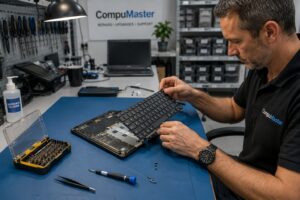
A proper service can involve inspecting the cooling system, removing accumulated dust, checking the fan and heatsink, assessing thermal transfer and identifying any other causes of excessive heat.
The exact service required depends on the laptop and the symptoms.
Please, add images to create gallery
Don’t Assume Overheating Is the Only Problem
Cooling problems often overlap with other laptop faults.
A laptop that is overheating and running slowly could have a cooling problem.
But it could also have:
- A failing SSD
- Insufficient RAM
- Excessive background processes
- Windows problems
- Malware
- A failing fan
- A battery or power problem
- Another hardware fault
That’s why replacing thermal paste or installing a cooling pad isn’t always the answer.
Diagnosis comes first.
Free Laptop Troubleshooting
Not sure whether your laptop is actually overheating or whether something else is causing the problem?
CompuMaster provides free online troubleshooting tools designed to help identify possible causes based on your symptoms.
You can work through the relevant questions before deciding whether the laptop needs professional attention.
Try our free Laptop Overheating & Fan Troubleshooter →
Explore More Laptop Guides
We’ll be adding detailed guides covering individual problems and questions related to laptop cooling and performance, including:
- Why is my laptop fan so loud?
- Why does my laptop overheat?
- Can dust make a laptop slower?
- What is thermal throttling?
- How often should a laptop be cleaned?
- Does replacing thermal paste really help?
- Can a laptop fan be replaced?
- Why does my laptop shut down when it gets hot?
- Can overheating damage a laptop?
- Do laptop cooling pads actually work?
These individual guides can help you understand a specific problem without having to work through an entire technical manual.
Need Help With an Overheating Laptop?
If your laptop is running unusually hot, constantly noisy or slowing down when it gets warm, don’t simply assume that the laptop needs replacing.
The problem may be something relatively straightforward such as cleaning, a cooling fan or thermal service. It may also be a software or hardware problem that requires further diagnosis.
CompuMaster provides remote, onsite and mail-in laptop repair, depending on the problem and your location.
Every repair starts with identifying the fault. We explain what we find and obtain your approval before carrying out chargeable repairs.
A Hot Laptop Doesn’t Necessarily Need Replacing
Overheating is often a warning that something needs attention — not a sign that the laptop has reached the end of its life.
Finding the cause early can restore performance, reduce unnecessary wear and potentially extend the useful life of the laptop.
Need help? Start with our free laptop repair assessment.
FAQ
Related Repairs
Need another repair type? Browse our blog for advice, FAQ and interesting news.


We Stock Quality Replacement Parts




See what our clients say
Live Google & Facebook Reviews Verified By TrustIndex
 Posted on Google
 Malesela Elias Langa
Trustindex verifies that the original source of the review is Google.
I had an issue with my laptop and Anton was very professional and helpful. He offered after hours delivery for my laptop at no extra charge and was able to diagnose the problem and gave a solution all in less than a day. I’ll definitely recommend their services.Posted on Google Thando NyembeI serviced my laptop with CompuMaster that was working like a glorified typewriter with flat keys. Anton collected it at my house late afternoon and I had it the next day midday. Anton kept me informed throughout the process. The work was cost effective, the service was top- tier! If I had not shamed his hand, I’d be convinced he is AI! Service like this just doesn’t exist anymore… Do yourself a favour, call him for all your device needs - he’ll sort you out faster than you can say AI! Keep up the stellar work!!!!👏🏾👏🏾👏🏾Posted on Google
 Prashant MistryAwesome service from Anton. Provided great advice and support on a gaming laptop. Went out of his way to help us out over the weekend. Highly recommended.Posted on Google
 Izell du Plooy DobsonAnton really went above& beyond from the moment we first spoke to assist in sorting out an initial beep(Bios error) on my laptop. Ended up being a much more difficult job in total but he sorted it all. The laptop is running smoothly again - I will definitely use him again and recommend himPosted on Google
 Ntombizethu SamI needed ink for my printer and most suppliers around Centurion were out of stock. Anton was relentless in his search and went the extra mile to source the ink from Joburg when others couldn’t help. His persistence and willingness to assist were greatly appreciated. He was also quick to respond to both calls and online messages, which made the whole process easy and reassuring. The company was a little slow with the invoicing, but that’s understandable — Anton is clearly more of a hands-on tech person than an admin person! Overall, great service and a big thank you for your help. Highly recommended.Posted on Google
 King VThe service was extremely awesome and Anton who happened to be the one fixing my laptop went above and beyond to help me fix my laptop, charged me less than I was supposed to pay if I’m being honest, he even fixed things he honestly didn’t have to which is heart warming and made me feel extremely comfortable. Honestly the best service I’ve had with laptops by farPosted on Google
 Rudi De klerkUitsondelike diens, uitstekende kommunikasie, vinnig en bekostigtigbaar.Posted on Google
 Malungelo ZwaneAnton gave great service for my laptop. It working as if its brand new thanks.Posted on Google
 Boniface HlabanoSuper efficient and very professionalVerified by TrustindexTrustindex verified that these reviews were published on CompuMaster Technologies (Pty) Ltd's Google Business Profile. Learn more